skip to main |
skip to sidebar
Ubuntu's Firefox default setting is just annoying: A single click in Firefox address or search bar does not highlight the entry.
Here are the steps to configure Firefox to highlight the entry in the address or search bar.
- In Firefox address bar, type about:config and press Enter.
- Click the “I'll be careful, I promise!” button.
- In the Filter box type browser.urlbar.clickSelectsAll.
- Under Preference Name, double-click browser.urlbar.clickSelectsAll to set it to “true” (or right click and select toggle).
- Close about:config.
Note: If the address or search bar does not highlight on single click, restart Firefox.
Lately, I have noticed that when I open Firefox, the tabs do not load. I opened the Options window in Firefox’s Tools menu then to Privacy > Use custom settings for history and configured some settings making sure the Automatically start Firefox in a private browsing session check box is unchecked. My settings didn’t work.
The culprits, I found out running Firefox on Safe Mode, are two of my add-ons. Disabling either the WebMail Notifier 2.4 or Torbutton 3.6.2 or both of them allows Firefox to load its tabs when opened.
Are these add-ons really the cause of tabs not loading or there is something to be configured in the about:config settings?
Google's Chrome opens sites faster than my default browser Firefox. For now I cannot leave Firefox for Chrome because of the availability of extensions (add-ons) for the former which the later lacks.
I only use Chrome when Firefox is having a noticeable difficulty loading pages. Although I have exported my Firefox bookmarks to Chrome, it is cumbersome to export them whenever a new site is bookmarked in Firefox.
I have discovered one way of viewing my Firefox bookmarks in Chrome: click and drag a bookmark into Chrome's page and the page will load in Chrome. A bookmark can be exported too into Chrome's bookmark toolbar by the click and drag method.
Likewise, the method above is possible if it is done the other way—from Chrome to Firefox. In fact, the exporting method can be done also from Firefox to IE 8 and vice versa but is not possible for the Opera browser.
Of course there are Chrome View and Safari View add-ons for Firefox but the fact that it can be done into IE8 (Avant and Safari, too) makes this method handy for those who uses more than one browser.
In Avant and Safari, bookmarks from Firefox can open into these two browsers but not the other way around.
Installing an Add-on
Caution
As with every install, Firefox users are warned to install add-ons from trusted authors only. If there is a reason to believe that the file mentioned below is a malicious software then do not install the add-on.
Download the add-on
Go to Kaosmos Website. Find the heading SEARCHHOTKEYS on the page. You can find it too by clicking the link SearchHotKeys on the left sidebar of the page.
There are many ways to download and install this file. We will follow what the website suggests. This procedure assumes you are using Firefox 3.
- Right-click the download link that corresponds to your version of Firefox.
- On the options menu, click Save Link As . . . , a Save As dialog box opens.
- Save the searchhotkeys-FF30-0.1.4.xpi file. I recommend saving the file on your Desktop.
Install the searchhotkeys-FF30-0.1.4.xpi file
There are two ways to install searchhotkeys-FF30-0.1.4.xpi file.
Method 1 With your Firefox open, choose File > Open File
- Browse to the folder where you have saved the searchhotkeys-FF30-0.1.4.xpi file. Select the file and click Open. A Software Installation dialog box opens.
- Click the Install Now button. An Add-ons dialog box opens.
- Click the Restart Firefox button.
Method 2 (Recommended) With your Firefox open:
- Open the folder where you have saved the searchhotkeys-FF30-0.1.4.xpi file,
- Drag and drop the file into the Firefox browser. A Software Installation dialog box opens.
- Click the Install Now button. An Add-ons dialog box opens.
- Click the Restart Firefox button.
Test Quick Find
After restarting Firefox, click a blank area on a webpage. Press the slash (/) and single quote keys ( ' ). The Quick Find search bar must not show up.
Now, press SHIFT + caret (^) keys or SHIFT + vertical bar or pipe (|) keys. What happens? Quick find is enabled. This is because the SEARCHHOTKEYS add-on defaults for Quick Find normal search and links only are the caret and vertical bar keys, respectively.
Disable Quick Find completely
Backup the about:config files in Firefox before carrying out the steps below.
- Open a new tab or window in Firefox 3.
- Type 'about:config' (without the quotes) in the address bar. A page opens displaying "This might void your warranty!"
- Click the "I'll be careful, I promise!" button. A new page opens showing user preferences with values that can be modified. DO NOT EXPERIMENT CLICKING ON ANY OF THESE ITEMS!
- In the Filter box type 'searchkeys'. Three items must show on the page similar to the one below.
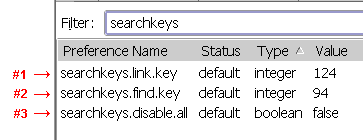
- Double-click item #3, searchkeys.disable.all, to set the item to 'true' as shown below.
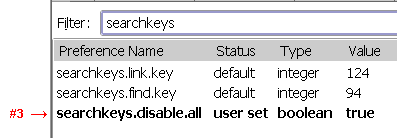
- Quick Find is now disabled completely. Close the about:config page.
Change settings for Quick Find
You can enable Quick Find with this add-on and assign different keys for opening 'normal' and 'links only' searches. For example, if you want the tilde (~) key to open Quick Find (links only) when it is pressed, change the value of searchkeys.link.key to 126 which is the ASCII decimal value of tilde and set item #3 to 'false.'
An added bonus
Or just another annoyance? Press CTRL + F3 and you will have the classic search pop-up.
Read also: How to Disable Quick Find in Firefox, and How to Disable Firefox Quick FindAnother Ascii Table
Finding a Solution to Disable Quick Find Completely
The predator
A friend of mine, Dr. Robertson, prompted me that somehow Firefox Quick Find feature still interferes in his typing practice even after setting the accessibility.typeaheadfind to 'false' in the about:config settings.
“How?” I queried him inquisitively.
“As we all know pressing either the slash or single quote key enables Quick Find, right?” I nodded in approval as he continued, “I was practicing typing online at typingtutor-online.com's My Text section when suddenly my typing was halted by something incomprehensible. I pressed every key on the keyboard and yet no character was coming out. Much to my surprise I found out that Firefox Quick Find had stealthily emerged above the status bar and it was stealing focus on my typing.”
“What do you mean by stealing focus,” I asked.
“You see, I was typing with texts full of slashes and single quotes. Every time I pressed either key, Quick Find springs up and like a vicious predator from beneath feeds on all my slashes and single quotes and all other innocent characters,” this he said haltingly. With a pale face and sweat as large as peas on his forehead, my perplexed friend concluded, “Arnel, your post on How to Disable Quick Find in Firefox last month is flawed.”
Looking for a cure
The horror, the horror of it all, right there in my desktop Quick Find was gorging on all the slashes ( / ) and single quotes ( ' ) as I reenacted the circumstances Dr. Robertson had narrated.
I opened about:config and look for clues inside the items, maybe there is a way, I thought, to disable Quick Find completely that would end my friend's misery. I tried to configure all typeaheadfind Boolean items to 'false' and then to 'true' and back again to 'false' and configured accessibility.typeaheadfind.timeout value to zero; all efforts failed.
So I invoked the power of Google and prayed that it provide a vaccine to this ailment plaguing Firefox users. It showed me a website and directed, “Go to Kaosmos Website!” Upon arrival at the site, I saw plug-ins and extensions free for downloads. And somewhere on this site a solution not only for my friend's Firefox 3 but also for Firefox 1.5 and 2.0 users.
Bearer of Good News
So I turned from my desk and reach out for the phone to report the good news to my dear old friend.
“Good news, Dr. Robertson. I finally found the solution to your predicament,” I told him as I opened Gmail. “I will be sending you the procedure through email.”
“Thank you, Arnel. I can't wait to tinker with my Firefox again.”
As I was about to give him a word of reproach on tinkering Firefox, he proudly announced that his typing speed had increased considerably since our last conversation. “It's 40 cpm!”
And then he asked, “What does cpm stand for?”
And so the day went on for a tutorial on abbreviations . . .
Read also: How to Disable Quick Find in Firefox, and How to Disable Firefox Quick Find Completely
NOTE: The author does not consider Firefox Quick Find as a virus. Dr. Robertson is not real. However, Kaosmos Website and Google are real.
Firefox's Quick Find feature can sometimes be annoying. Quick Find's search bar would unexpectedly appear above the status bar at times when I start to type. It is designed not to activate when a computer user is typing in a text box or search box. However, there was one situation when Quick Find kept on appearing when I practiced typing online. The cursor was inside the typing "practice box" and texts were written (or typed) in Quick Find’s search box instead of in the "practice box." I had to disable this Firefox feature forever. The following are two methods readers may find helpful on how to disable Quick Find in Firefox:
- Through the Options dialog box,
- Or changing the about:config settings.
Method 1: The easy way
How to disable in Firefox 3 browser:- In the menu toolbar, click Tools,
- Next, click Options, the Options Dialog box opens,
- Click the Advance Tab when it is not currently shown,
- Click the General Tab when it is not currently shown,
- Then uncheck the "Search for text when I start typing" box,
- Finally, click OK
Method 2: For the adventurous
This method involves tweaking or modifying user preferences in the about:config settings. Backup the about:config files in Firefox before carrying out the steps below. The following is the process on how to disable Quick Find:
- Open a new tab or window in Firefox 3,
- Type "about:config" (without the quotes) in the address bar. A page opens displaying "This might void your warranty!"
- Click the "I'll be careful, I promise!" button. A new page opens showing user preferences with values that can be modified. DO NOT EXPERIMENT CLICKING ON ANY OF THESE ITEMS!
- Under Preference Name, look for the entry accessibility.typeaheadfind.
- Double-click accessibility.typeaheadfind to set the value to "false."
- Close the about:config tab or window.
Another way of finding the accessibility.typeaheadfind name is to type the name in the Filter box—do not press Enter.
A short note
Disabling Quick Find through Method 1 automatically sets the accessibility.typeaheadfind value to "false" in the about:config settings and vice versa, so there is no need to do both methods. Method 1 is the safest way to disable Quick Find. In addition:
- Quick Find can be enabled in its disabled state by pressing the slash (/) key in the keyboard.
- To search for the next instance, press the F3 key.
- The Quick Find bar will not show up if the cursor is in a text or search box. In this case, press the Tab key to tab out or click on any blank area in the page.
Read also: How to Disable Firefox Quick Find and How to Disable Firefox Quick Find Completely
 Firefox. I have been using Firefox for three years now and I have no intention of defecting to another browser. What makes Firefox stands out from other browsers is the potential for user customization. I can select from many available themes and “skin” Firefox to an entirely different appearance. I can add extensions such as the Gmail Notifier to alert me of a new email from Gmail or—one of my favorites!—the Video DownloadHelper to download videos from supported sites so I could watch it at a later time. The choices are endless for add-ons that range from bookmarking to privacy and security, and from news feeds to search tools.
Even without the add-ons, the built-in features of a bare Firefox are awesome such as tabbed browsing—though browsers at present have this feature—and spell-checker for text boxes. It also allows users to run different profiles of Firefox and distinctively customize each of them.
The one great thing about Firefox is that it runs on several platforms. Since I have Windows and Ubuntu installed in my PC, I can also use Firefox as my personal browser in Ubuntu. And guess what? I was able to export my Firefox bookmarks in Windows to my Firefox in Ubuntu.
Thus, Firefox is the best browser because it enables users to have complete control of, well, his/her Firefox. For those interested in Firefox, click the Firefox button located at the sidebar and explore why Firefox should be your own personal browser.