skip to main |
skip to sidebar
 If I can access Windows XP files from within Ubuntu Lucid Lynx, can I access Ubuntu files from within Windows XP?
My PC runs on a dual boot system with Ubuntu installed inside Windows XP—the former installed in an external USB hard drive with NFTS partitions, and the latter in the internal hard drive. With Ubuntu not booting all my files are gone. Fortunately, there are tools that can access Linux file systems from within Windows XP and with these tools a user can scavenge the files and salvage the usable materials.
Linux uses a different file system; it's called the extended file system. Extended file system is to Linux as NFTS (or FAT) is to Windows. The default file system of Lucid Lynx is ext4; ext, ext2, and ext3 are the other members of this system. One program that can read ext4 is ext2read. This is the software I used to recover Ubuntu files from within Windows.
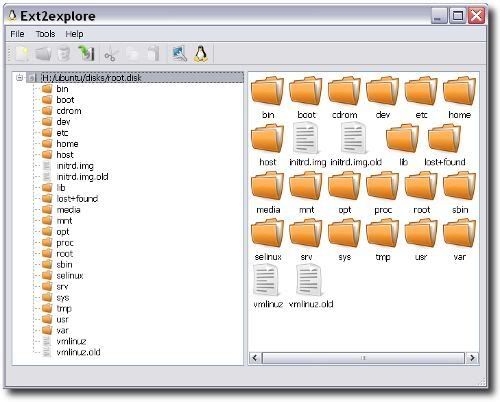
Ext2read is an executable that runs on Windows and can read and view files inside an ext2, ext3, or ext4 file system, and save them inside Windows. A screenshot of the program is shown below.

You can get ext2read at the following:
http://ext2read.blogspot.com/
http://sourceforge.net/projects/ext2read/
For those who are interested in a Pythagorean Triple Generator you may fetch it from my geometry class website.
This program is written in Just BASIC language and it is free.
I was practicing how to write programs one day learning how to create a line in Liberty BASIC when it came to me that I could create a triangle. One thing led to another that I thought I create a Pythagorean Triple Generator and at the same time draw the triangle in scale. The result is a program written in Just BASIC language.
The program is available at this website, CST Geometry. You may download the program free.
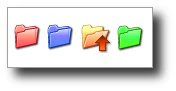 Changing the colors of my folders I thought would look nice in my PC; what I didn’t realize was that it would speed up my work. With customized folder icons, I can quickly pinpoint the specific folder I want to open.
With so many folders colored yellow in my PC, sometimes searching for a particular folder is like searching a needle in a haystack. One way to change the folder icon is to right-click the folder and choose Properties. In the Properties dialog box, click the Customize tab and click the Change Icon button. A Change Icon dialog box opens and select from the list of icons or you can browse to the folder where your icons are saved. Take note that only icons with .ico extensions can be used.
I have these icons with .gif extensions and what I did was to convert them to .ico using GIMP.
Another way of changing the folder icon is to simply change its color. With this method I use a free software called Folder Marker. Folder Marker is a helper which can mark folders by priority (high, normal, low), by degree of work complete (done, half-done, planned) and by the type of information contained in the folder (work files, important files, temp files, private files). When installed, you can customize or colorize—if this is the right term—your folders by right-clicking a folder and choosing Folder Marker among the options.
The Best Alternative to Microsoft Office  What’s in a name?
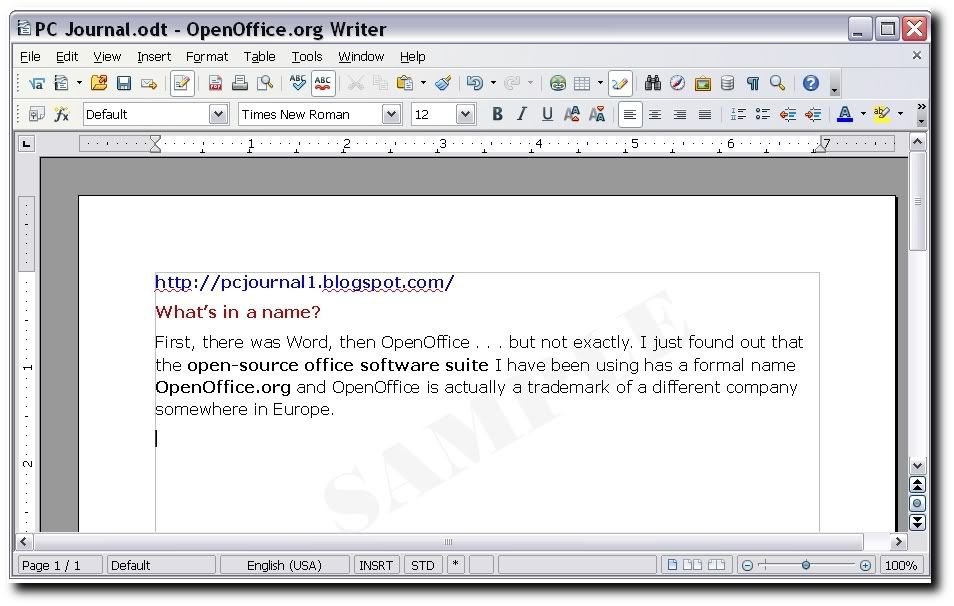
First, there was Word, then OpenOffice . . . but not exactly. I just found out that the open-source office software suite installed in my PC has a formal name OpenOffice.org and OpenOffice is actually a trademark of a different company somewhere in Europe.
It’s free!
OpenOffice (I prefer this name) is an office software suite for word processing, spreadsheets, presentations, graphics and more. If Microsoft has Word, Excel, PowerPoint and Visio, then OpenOffice has Writer, Calc, Impress, and Draw, respectively, and best of all, it’s free.
Consider OpenOffice Writer
Writer is the word processor component of the OpenOffice suite and it has similar functionality to Microsoft Word. I have been using OpenOffice Writer for quite a while and it’s probably the frequently used program in my PC; together with the math editor Math, and vector graphics editor Draw. Most amazing is that, a document written in Writer can be converted (exported) to PDF format effortlessly—I didn’t expect this feature embedded in a free software.
In addition, Writer can save my work as a .doc file (Word 2003) and can open (version 3.0) both .doc and .docx files (Word 2007).
Navigating Writer is not difficult, it feels like using Microsoft Word. There was one instance though that I got lost finding Page Setup in the File menu; page formatting is located at the Format menu in Writer. Since then, I never fail to ask OpenOffice.org Forum for help every time I run into a problem.OpenOffice is probably one of the best free downloads available on the Internet. This amounts to great savings compared to buying the Microsoft Office Suite software.
The latest version of OpenOffice is OpenOffice.org 3.1.
For QWERTY PC Keyboard Users
 Type like a pro
There were two reasons why I wanted to type like a professional; to save time (slow typing means more hours spent in front of the PC) and to produce more work such as working on a word processor. This post will show you how to learn to type for free online.
Typing instructions
Look for websites that offer free typing instructions and practice lessons without the need of signing in or registering. One such website is typeonline.co.uk which has keyboard and numeric keypad lessons, and safety lessons on typing as well. I must admit that their lessons are not as thorough as in other sites but I feel safe using typeonline.co.uk because of the absence of pesky pop ups.
Another site is typingtutor-online.com. Here you learn how to “type with all 10 fingers.” This site complements what typeonline.co.uk lacks on typing instructions and it has instructional videos. I felt safe navigating here—no pop ups and no need to sign in or register.
Download a typing tutor
One disadvantage of learning to type online is, well, you always have to be online. There is a free typing tutor software that can be downloaded for free; it’s called TypeFaster. Although TypeFaster has a limited HELP section, I found this software useful for practice typing and improving my touch-typing skills.
A short note
Practicing everyday for 20 minutes to 30 min helped increased my typing speed from 8 words per minute to 20 wpm in a month and after two months it went up to 30 wpm.
By the way if you are practicing online and using Firefox, you may have to disable the Quick Find feature in Firefox.

 If I can access Windows XP files from within Ubuntu Lucid Lynx, can I access Ubuntu files from within Windows XP?